The Excel N Function: Add Hidden Comments to Your Formulas
Published: Tue, 07/07/26
Updated: Sun, 07/12/26
How to add hidden comments inside Excel formulas making them easier to understand, audit and maintain.
How to Add Comments Inside Excel Formulas
Hi ,
Excel formulas can be difficult to understand, especially when you return to a workbook months later or hand it to someone else.
A formula may work perfectly, but that does not necessarily mean its purpose is obvious. This becomes a problem in shared workbooks, financial models, payroll files, reporting templates and any spreadsheet that needs to be reviewed or audited.
One way to make formulas easier to follow is to add a comment directly inside the formula itself.
This
article shows you how to do that using three useful Excel techniques:
• N() for adding
comments to formulas that return numbers
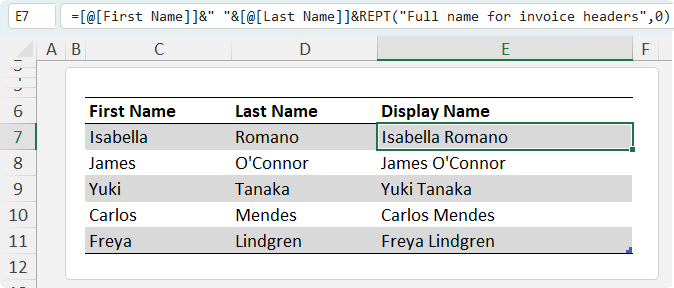
• REPT() for adding comments to formulas that return text
• LET() for building clearer,
self-documenting formulas in Microsoft 365
You will also learn why the N() trick sometimes causes a #VALUE! error, and how to choose the right method for your formula.
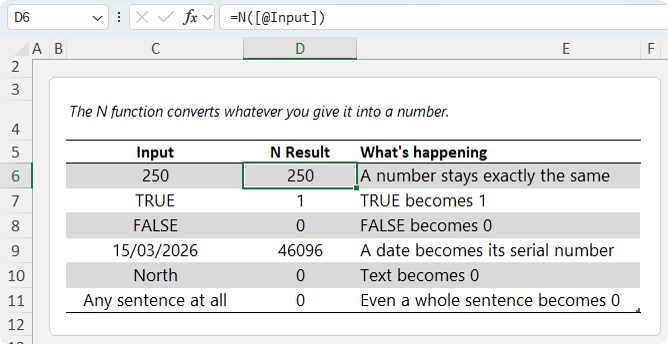
The result depends on the type of value you give it.
At first glance, this function can seem a little underwhelming. There are many ways to convert TRUE and FALSE into 1 and 0, and most users do not need to turn a date into its serial number.
The useful
behaviour is this:
=N("Any text here")
Because text always returns zero, you can place explanatory text inside a formula without changing the result.
That gives you a practical way to create formula comments that travel
with the formula wherever it goes.
Why Put Comments Inside Excel Formulas?
Excel already has comments and notes, so why not use those?
Cell comments and notes can be
useful, but they also have limitations:
• They can create visual clutter across a
worksheet.
• They sit outside the formula logic.
• They may not be visible if the file has comment indicators turned
off.
A comment inside the formula lives with the logic itself.
When someone selects the cell and views the formula bar, they can see not only how the calculation works, but also why it was written that way.
This is particularly useful for formulas with business rules, exceptions, thresholds or assumptions
that are not immediately obvious.
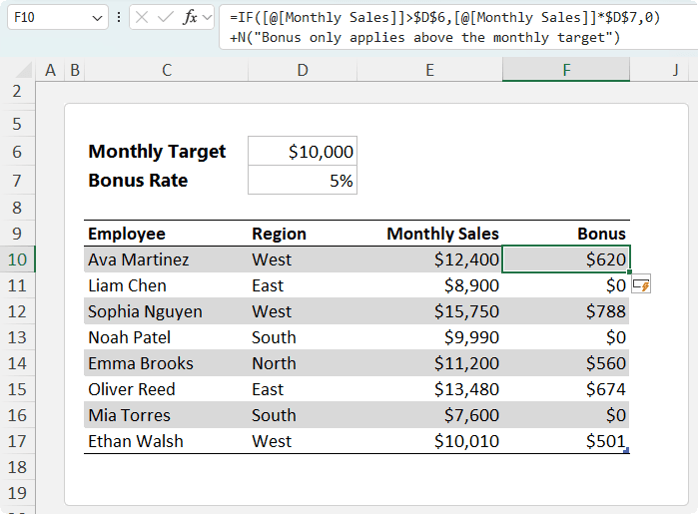
How to Add a Comment to a Numeric Excel Formula with N
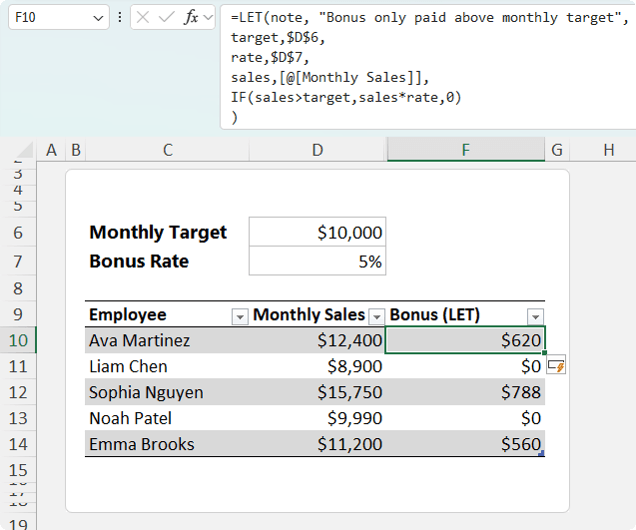
Suppose you are calculating a monthly sales bonus.
Sales representatives earn a 5%
bonus only when their monthly sales meet or exceed a target.
Microsoft 365 formulas that need clarity and named
inputs
Excel Version Compatibility
The N() and REPT() techniques work in older versions of Excel, making them particularly useful for files shared
across teams with mixed software versions.
The LET function is available in Microsoft 365 and newer perpetual versions of Excel that support dynamic array-era functions.
If you regularly share workbooks with people using older versions of Excel, it is worth knowing both approaches.
Make Your Excel Formulas Easier to Understand
A good Excel formula should do more than return the right answer.
It should also be understandable when someone reviews it later.
Using N() comments for numeric
formulas, REPT() comments for text formulas and LET() for clearer logic can make your spreadsheets easier to audit, maintain and share.
The key patterns are simple.
For numeric formulas use:
+N("comment")
and for text formulas use:
&REPT("comment",0)
Once you start using these techniques for important assumptions and business rules, you can make even complex spreadsheets far easier for others to follow.
For more advanced Excel formula techniques, explore the Advanced Excel Formulas course, where you will learn how to combine functions, simplify complex logic and build more powerful spreadsheets.
Want to sponsor our newsletters? Just reply to this email to get in touch with us.
Excel Dashboards
Dashboards provide insight, analysis and alerts by displaying key trends, comparisons and data in interactive reports. Filter data and change views to find the answers you need.
Microsoft’s leading business intelligence tool enables you to quickly develop stunning interactive dashboards. Embed Excel charts, Pivot Tables and data, then securely share to any device.
Ready to go beyond spreadsheets and start solving real business problems? Whether transitioning into data analysis or levelling up in your current role, this Excel Fast Track is your launchpad.
Automate repetitive tasks and build powerful Excel applications with Macros and VBA. Record macros, write VBA code, create custom functions and build user
forms — no prior programming experience required.
Get quickly up to speed with Excel’s functions. Covers the fundamentals for each
function and less-obvious advanced uses. The techniques that will really set you apart from the crowd.
Make huge efficiency gains using dynamic named ranges that automatically update formulas, Pivot
Tables and charts. Automate banded formatting, sorting, filtering and totals — all in under 1 hour.
Quickly build your own Pivot Tables with confidence. Covers ideal data layout,
formatting, aggregation, pivot charts, filters, slicers and much more — in the shortest time possible.
Automate the laborious task of gathering and cleaning data from almost any source. Load data into
Excel, Power Pivot or Power BI for analysis, report preparation or export.
Import millions of rows of data, create relationships between different data sources, and build
interactive reports. Transform huge volumes of data into meaningful information fast.
From zero to hero — confidently list ‘Advanced Excel Skills’ on your resume. Covers best workbook
design, advanced formulas, pivot tables, conditional formatting, macros and much more.
Supercharge your workflow with AI across Word, Excel, PowerPoint, Outlook and Teams. No tech
jargon — just practical skills that make your daily work easier, faster and smarter.
Quickly summarise and analyse large amounts of data with just a few clicks. Transform data
into meaningful information and create reports that are easy to update and change.
Choose one or any combination of the three. Learn the core Office tools every
professional needs — covering the skills that matter most in a modern workplace environment.
This email may contain affiliate links. This means I may earn a commission should you choose to make a purchase using my link. But we only promote courses we believe will benefit you.