What Are the Excel IMPORTCSV and IMPORTTEXT Functions?
Excel now includes two dedicated import functions:
=IMPORTCSV(path, [skip_rows], [take_rows], [locale])
=IMPORTTEXT(path, [delimiter], [skip_rows], [take_rows], [encoding], [locale])
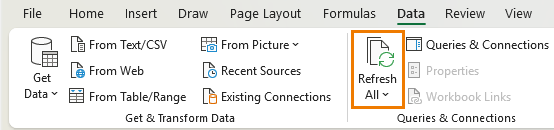
Both functions return dynamic arrays that spill directly into the worksheet. Excel treats them as external connections, so they refresh automatically when you use Refresh All via the Data tab:
Unlike Power Query, there are no hidden steps stored in an editor. Everything is visible in the formula bar:
IMPORTCSV Function Explained
CSV files are the simplest place to start because they
use commas to separate values.
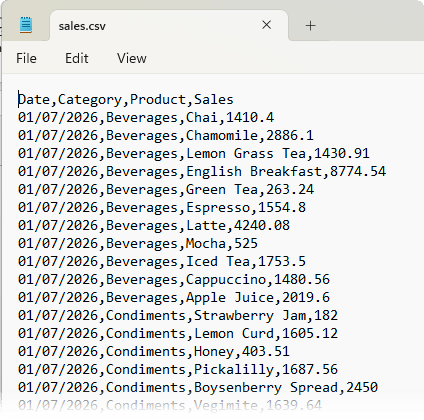
A typical CSV file might contain columns such as Date, Category, Product, and Sales, with each value separated by a comma:
To import a CSV file into Excel, all you need is the file path wrapped in double quotes e.g.:
=IMPORTCSV("C:\Data\sales.csv")
Once you press Enter, the data spills directly into the grid:
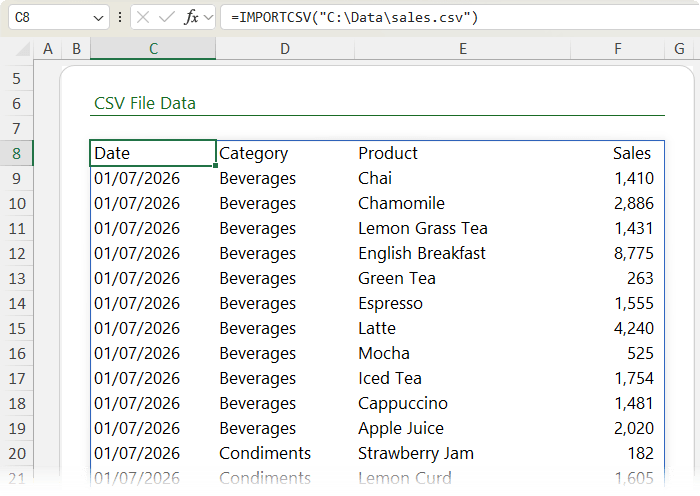
There is no preview window, no column mapping, and no background query logic. You can clearly see where the data comes from simply by looking at the formula.
IMPORTTEXT Function Explained
IMPORTTEXT is designed for text files that may use different delimiters or fixed-width columns.
To import a text file using the default comma delimiter:
=IMPORTTEXT("C:\Data\products.txt")
Using a Custom Delimiter
If your text file uses a different delimiter, such as a space, you can explicitly specify it:
=IMPORTTEXT("C:\Data\products.txt"," ")
This
makes the structure of the file immediately clear to anyone opening the workbook.
Fixed-Width Text Files With IMPORTTEXT
For fixed-width files, you can define column breakpoints using an array of ascending integers.
Example:
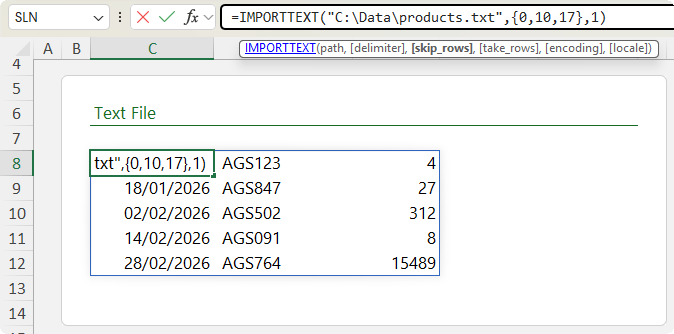
=IMPORTTEXT("C:\Data\products.txt",{0,10,17},1)
Each number represents a character position where Excel should split the text.
This approach works best when column widths are consistent, such as dates or product codes.
Skipping Rows and Limiting Rows
Both IMPORTCSV and IMPORTTEXT allow you to control how many
rows are imported.
You can skip rows, like header rows:
=IMPORTTEXT("C:\Data\products.txt",{0,10,17},1)
And limit the number of
rows returned:
=IMPORTTEXT("C:\Data\products.txt",{0,10,17},1,2)
This is useful when working with large files or when you only need a subset of the data.
Encoding Options in IMPORTTEXT
When working with text files from different regions or systems, encoding matters.
IMPORTTEXT supports an optional encoding argument, such as UTF-16.
Note: UTF-8 is the default and works in most cases, so you only need to specify encoding when files come from systems using different standards.
Locale Argument for Regional Formatting
The locale argument controls how Excel
interprets dates and numbers.
By default, Excel uses your operating system locale. You only need to specify this argument when working with files formatted for another region.
For example, if you are in the United States and you download files formatted for Australia you would enter
(inside double quotes):
en-AU
This ensures dates and numeric formats are interpreted correctly for your locale during import.
Why These Import
Functions Are So Powerful
Every parameter in IMPORTCSV and IMPORTTEXT is explicit.
There are no hidden transformations.
There is no guesswork.
Anyone opening your file can understand exactly how the data is imported simply by reading the formula.
Advanced Example: Summarising Imported Data With Formulas
Because these functions return arrays, you can immediately pass their output into other modern Excel functions for filtering, sorting and aggregating.
For example, you can summarise sales data stored in a text file using the GROUPBY function.
=LET(
data, IMPORTTEXT("C:\Data\sales.txt"),
GROUPBY(
CHOOSECOLS(data,2),
CHOOSECOLS(data,4),
SUM,
3,
1
)
)
You can see the result in the screenshot below:
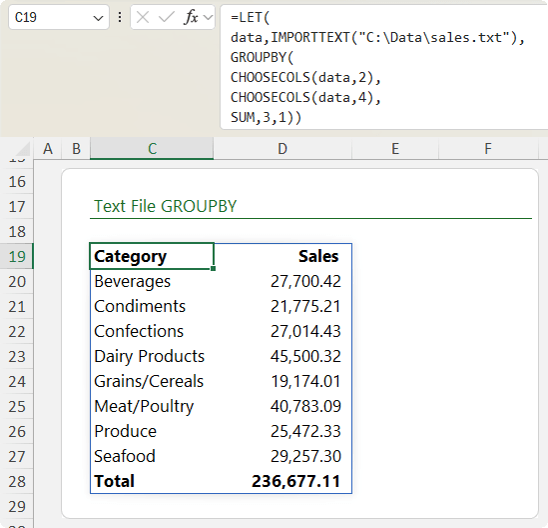
In this formula:
- The LET function stores the imported data once for
efficiency and readability
- CHOOSECOLS extracts the Category column
- CHOOSECOLS extracts the Sales column
- GROUPBY summarises Sales by Category
- Headers are included
- A grand total is added
This entire workflow happens directly from a text file using a single formula.
When to Use
IMPORTCSV and IMPORTTEXT
Use these functions when:
- Your files are structured and already clean
- You want complete transparency
- You want users to understand the workflow without opening Power Query
- You are importing individual CSV or text files
When Power Query Is Still the Better Choice
Power Query is still unmatched when:
- You need complex data transformations
- You are
combining multiple files
- You are merging data from different sources
- You are working with databases, APIs, or SharePoint lists
IMPORT functions work only with CSV and text files. Power Query connects to dozens of data sources.
When Simple Imports Are Not Enough
If you regularly work with messy data, multiple files, or need to reshape, merge, or automate repeatable data workflows, then Power Query is the tool you really want to master.
It is built specifically for cleaning, transforming, and combining data at
scale, and once you understand it, you will save hours on every project.
Click here to take my step-by-step Power Query course that shows you exactly
how to use it in real-world scenarios, from simple clean-ups through to advanced transformations, so you can work faster, with fewer errors, and with confidence.






 Learn With Us