Experienced Excel Users Are Replacing IF With These Functions
Published: Tue, 06/09/26
Updated: Sun, 06/14/26
6 Better Alternatives to the Excel IF Function
Hi ,
The IF function is one of the most useful functions in Excel, but it is also one of the most overused.
Because IF is so flexible, it often becomes the default solution for every type of decision, lookup, summary, or calculation. That can lead to long, complicated formulas that are hard to read, difficult to maintain, and easy to break.
IF is
designed to test a condition and return one result if the condition is true, and another result if it is false.
A simple IF formula looks like this:
=IF(A2>=1000,"Target Met","Below Target")
This is perfectly fine.
The problems start when IF is used for everything:
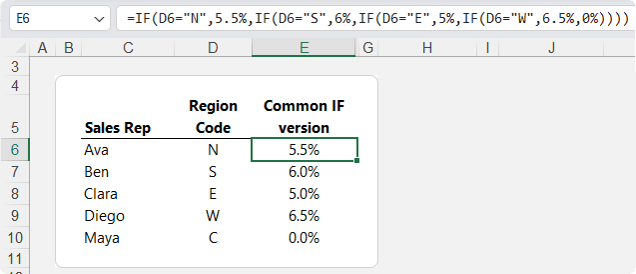
=IF(D6="Unpaid","Chase Payment", IF(E6="Out of Stock","Backorder", IF(F6>7,"Expedite","Ship")))
Again, this formula can work. But as the number of conditions grows, the
formula becomes harder to follow. You have to manage multiple opening and closing brackets, keep the logic in the right order, and make sure every possible result is covered.
In other situations, IF gets used for tasks that are not really logical tests at all. For example:
• Looking up a commission rate from a region code
• Returning a result based on a dropdown selection
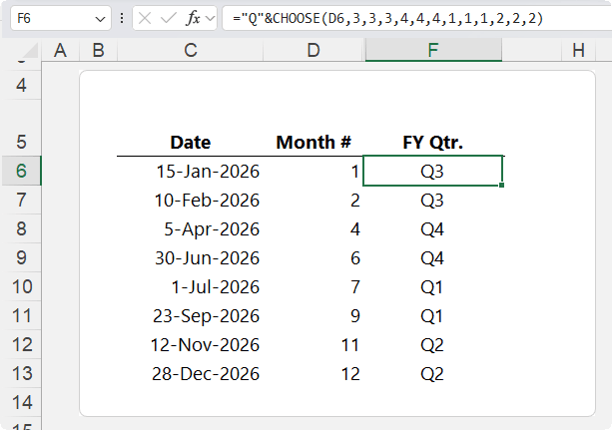
• Mapping month numbers to financial quarters
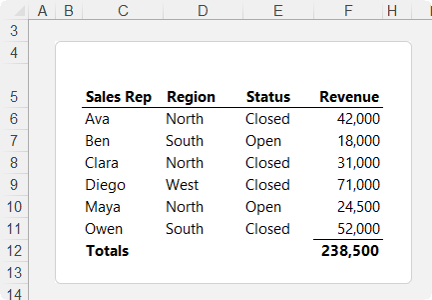
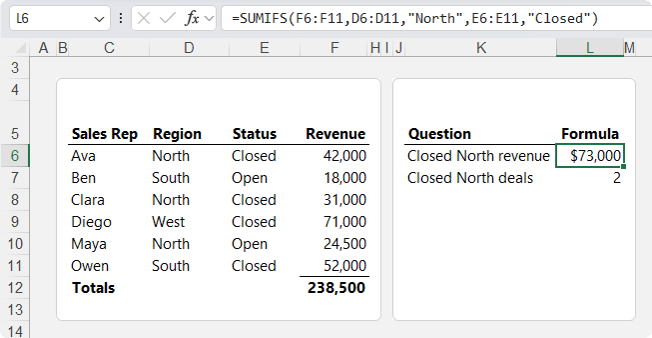
• Summing rows that meet multiple conditions
• Repeating the same
calculation inside a longer formula
These are all common Excel tasks, but IF is often not the best function for them.
1. Use IFS Instead of Nested IF for Multiple Conditions
The IFS function is the most obvious alternative to nested IF formulas.
It is useful when you have several conditions to test, and each condition returns a different result.
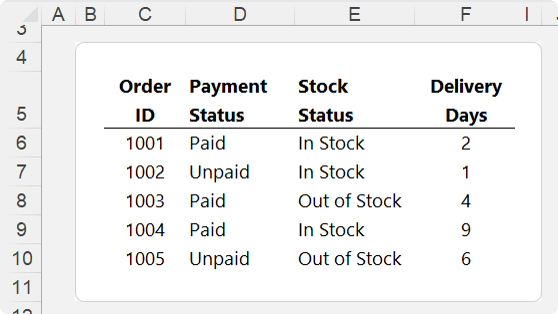
Imagine you have a list of sales orders, and each order needs a follow-up action. Some orders have not been paid. Some items are out of stock. Some deliveries will take too long. The remaining orders are ready to ship.
You could use a nested IF formula, but it gets harder to read as more conditions are added.
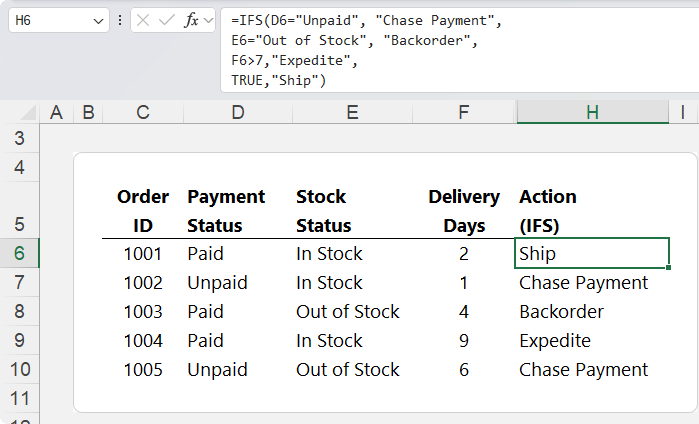
A cleaner option is IFS:
=IFS( D6="Unpaid","Chase Payment", E6="Out of Stock","Backorder", F6>7,"Expedite", TRUE,"Ship" )
IFS works in pairs:
1. A condition to test
2. The result to return if that condition is true
Excel checks the conditions in order from top to bottom. The first condition that evaluates to TRUE wins.
In the above example, the formula checks:
1. Is the order unpaid? If yes, return “Chase Payment”.
2. Is the item out of stock? If yes, return “Backorder”.
3. Are delivery days greater than 7? If yes, return “Expedite”.
4. If none of those are true, return “Ship”.
The final TRUE, "Ship" acts like a default result. It catches anything that does not match the previous conditions.
Why the Order Matters in IFS
The order of conditions is important because IFS returns the first TRUE result.
In the order status example, unpaid orders should be flagged first. There is no point expediting an order that has not been paid for.
This is why the
formula checks for unpaid orders before checking stock or delivery timing.
=IFS( D6="Unpaid","Chase Payment", E6="Out of Stock","Backorder", F6>7,"Expedite", TRUE,"Ship" )
IFS vs Nested IF
IFS is usually easier to read than nested IF because each condition and result is listed in a simple sequence.
However, there is one important difference.
IFS evaluates all conditions, even though it returns
the first TRUE result. Nested IF formulas stop evaluating once they find the first TRUE result.
In very large workbooks, nested IF may sometimes be more efficient. For most everyday formulas, IFS is easier to write and maintain.
When to Use IFS
Use IFS when:
• You have several conditions to check
• Each condition returns a different result
• The order of the conditions matters
• You want a cleaner alternative to nested IF
Avoid IFS when your formula is really trying to look up a value from a table. That is a job for XLOOKUP.
2. Use XLOOKUP Instead of IF for Matching Values
A common mistake is using IF to match one value to
another.
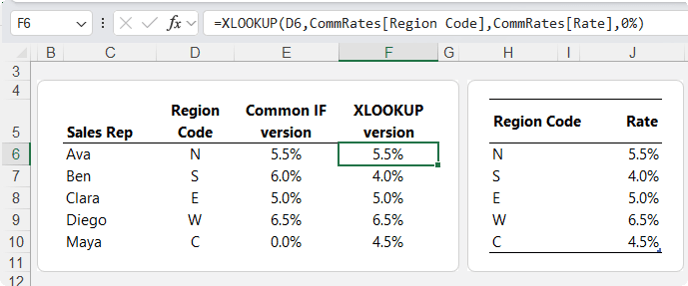
For example, suppose you have region codes, and each region has a different commission rate.
You might be tempted to write a nested IF formula that says:
• If region is N, return this rate
• If region is S, return that rate
• If region is E, return another rate
That works, but the rules are buried inside the formula. If a commission rate changes, you have to edit the formula. If a new region is added, the formula has to be rewritten.
This is not really a logic problem. It is a lookup problem.
A better solution is to store the region codes and commission rates in a small lookup table, then use the XLOOKUP function:
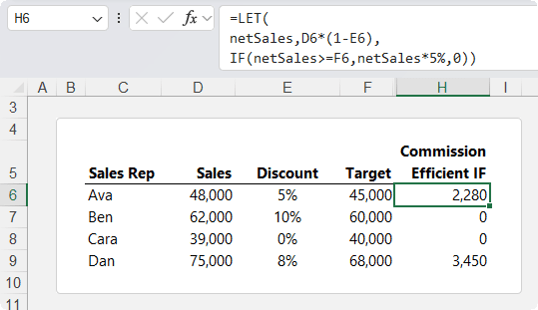
LET allows you to name part of a formula, then reuse that name later in the same formula.
This can make formulas easier to read, easier to maintain, and more efficient.
Example: Commission Based on Net Sales
Suppose you are calculating commission based on net sales.
Net sales are calculated as:
Sales less discount
The commission is only paid if net sales meet or exceed the target.
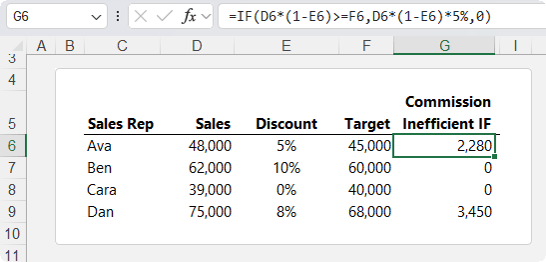
A standard IF formula might look like this:
=IF(D6*(1-E6)>=F6,D6*(1-E6)*5%,0)
This works, but the same calculation appears twice:
D6*(1-E6)
That is the net sales calculation.
The formula uses it once to test whether the target was met, and again to calculate the commission.
In a small formula, that might not seem like a major problem. In a real
workbook, repeated calculations can be longer, harder to check, and copied down thousands of rows.
And if the target was not met, the formula returns zero.
Why LET Makes Formulas Better
LET improves the formula in three ways.
First, the net sales calculation only appears once.
Second, the formula is easier to read because netSales explains what the calculation represents.
Third, if the net sales logic changes, you edit it in one place.
This is especially useful in formulas that contain repeated logic, intermediate
calculations, or complex expressions.
When to Use LET
Use LET when:
• The same calculation appears more than once
• A formula is getting hard to read
• You want to name intermediate
results
• You want to improve formula maintainability
• You want to reduce repeated calculations
LET does not replace IF. It works with IF and other functions to make formulas cleaner.
When Should You Still Use IF?
IF is still the right choice when you have a straightforward logical test.
For example:
=IF(B2>=1000,"Target Met","Below Target")
This is simple, clear, and easy to maintain.
IF is also useful inside other functions. For example, LET can use IF to make the final decision after defining intermediate values.
The goal is not to stop using IF altogether. The goal is to use the right function for the job.
A Practical Way to Choose the Right Function
When you are about to write an IF formula, pause and ask:
• What am I really trying to do?
• If you
are testing several conditions in order, consider IFS.
• If you are matching one value to another, use XLOOKUP.
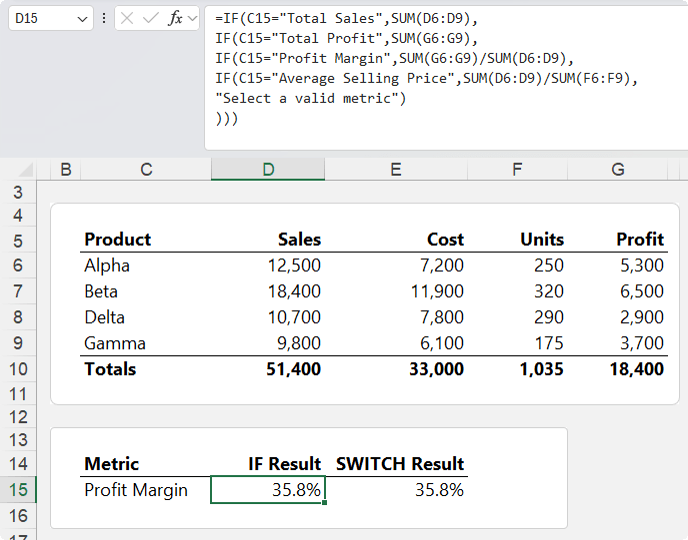
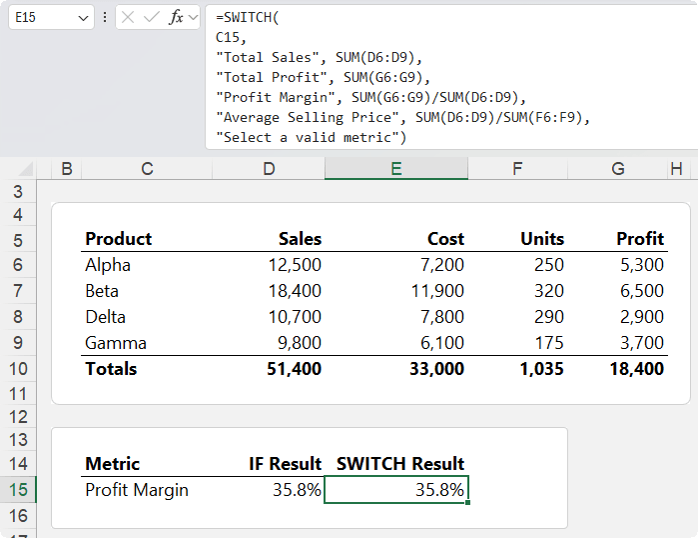
• If you are testing one value against several options, use SWITCH.
• If a number represents a position, use CHOOSE.
• If you need a total or count based on conditions, use SUMIFS or COUNTIFS.
• If you are repeating the
same calculation, use LET.
The result is cleaner formulas, fewer errors, and workbooks that are much easier to maintain.
If you enjoy learning how to build smarter formulas, check out my Advanced Excel Formulas course. It will help you move beyond memorising functions and start choosing the right formula approach for each task.
You’ll learn how to combine functions, simplify complex logic, work with dynamic arrays, troubleshoot formulas, and build more reliable Excel solutions.