Excel is incredibly powerful
for individual use and small workflows. But when you start using it as a shared system, cracks appear.
Common issues include:
• Multiple users editing the same file
• Data being accidentally overwritten
• No control over permissions
• Difficulty sharing with non-Excel users
• Increasing complexity as the file grows
These are not spreadsheet problems. They are system design problems.
You need something that can handle multiple users, control data entry, and provide a clean interface for your team. The problem is that most tools that solve this introduce a level of complexity that feels like a big
leap.
Zite enables
you to take an existing Excel file and turn it into a structured, database-driven app with proper access control and a user-friendly interface with zero code.
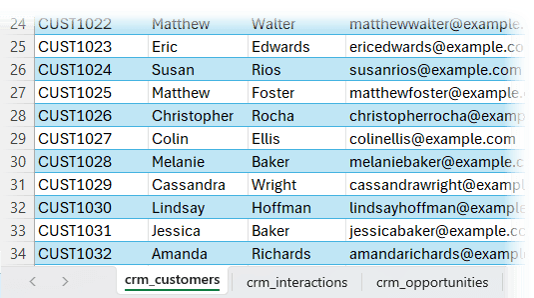
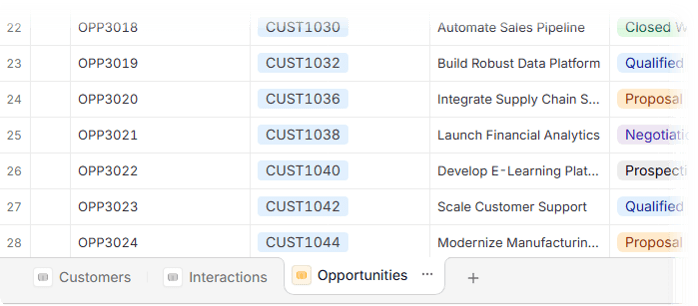
In this example, the starting point is a typical Excel setup for a customer relationship management system (CRM):
• A Customers table
• An Opportunities
table
• An Interactions table
This structure is common for CRM-style workflows. Many people already have something like this built in Excel.
Instead of rebuilding everything from scratch in another system, the goal is to reuse this data and evolve it into something more robust.
Step 1: Upload Your Excel File
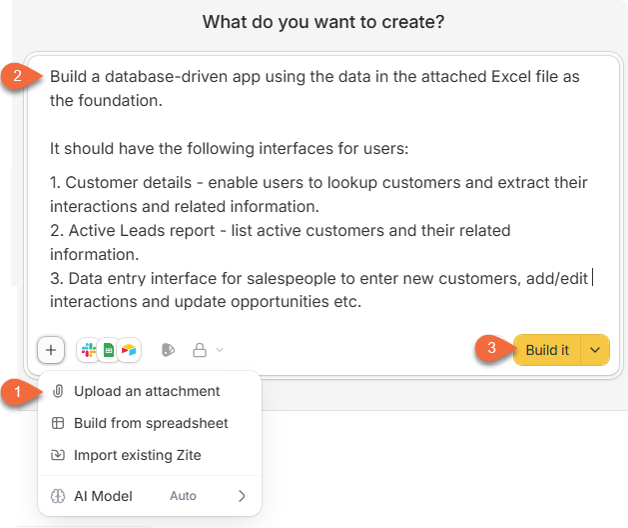
The first step is simple. Upload your Excel file into Zite.
Once uploaded, you provide a short instruction describing what you want to build. For example:
• A customer lookup interface
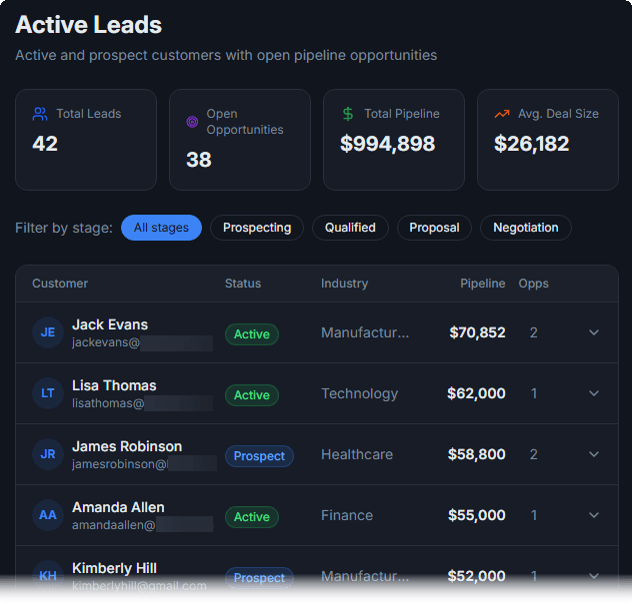
• An active leads report
• A data entry interface for adding and updating records
No complex prompting is required. Just clear, simple instructions.
Step 2: Let the App Build Itself
From there, the platform handles the heavy lifting.
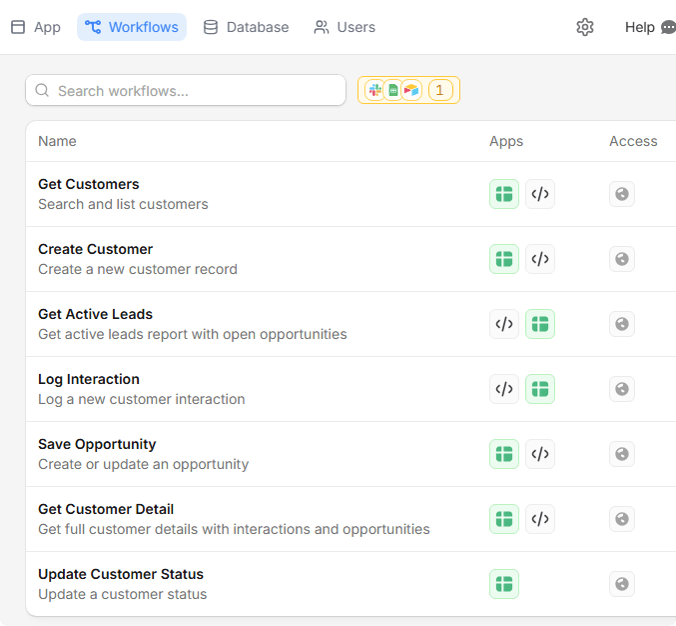
It reads your spreadsheet and understands the structure. It identifies relationships between tables. It then builds the logic required to turn your data into a functioning app.
What you get is not just a visual layer. It is a complete system:
• Structured database
• User interface
• Workflows behind the scenes
All of this is generated from your original Excel file.
Step 3: Explore the App
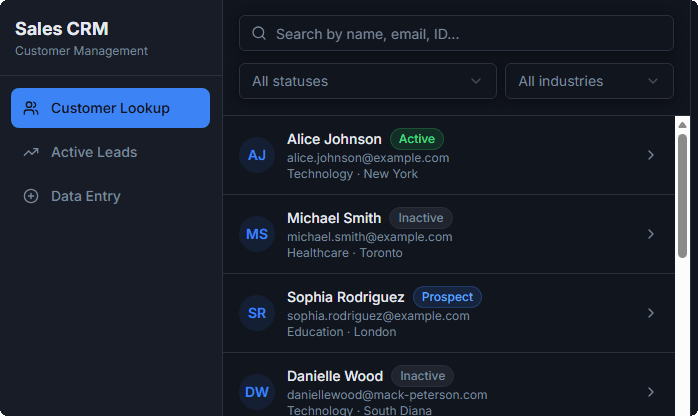
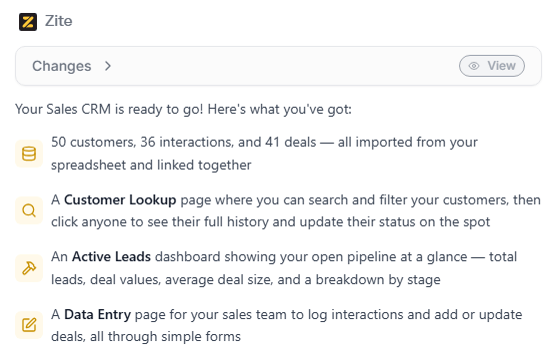
The generated app includes:
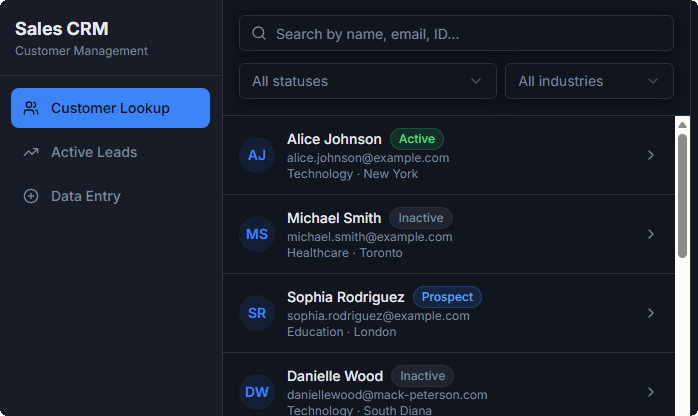
Customer Lookup
Users can search for a customer, view their interactions, and check related opportunities.
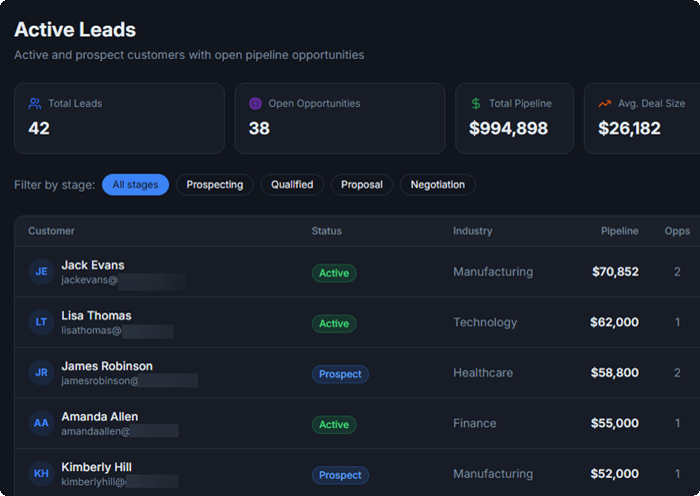
Active Leads Report
A clear overview of your pipeline, with filtering options to refine results.
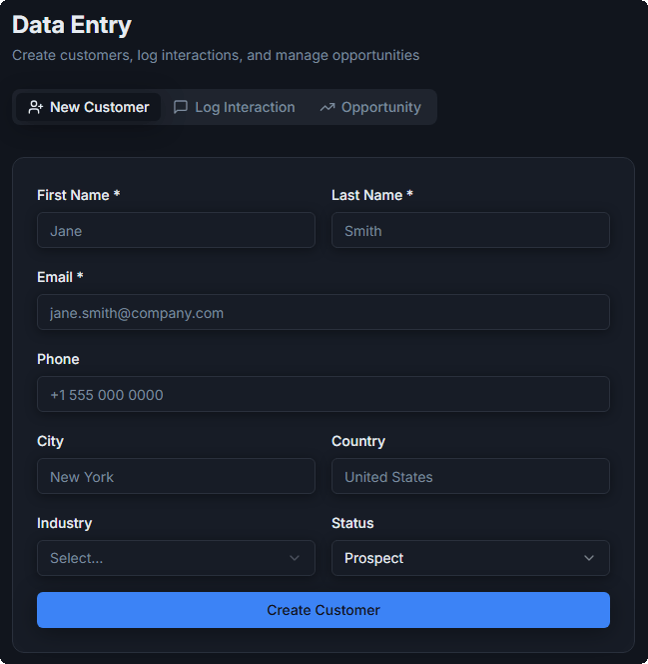
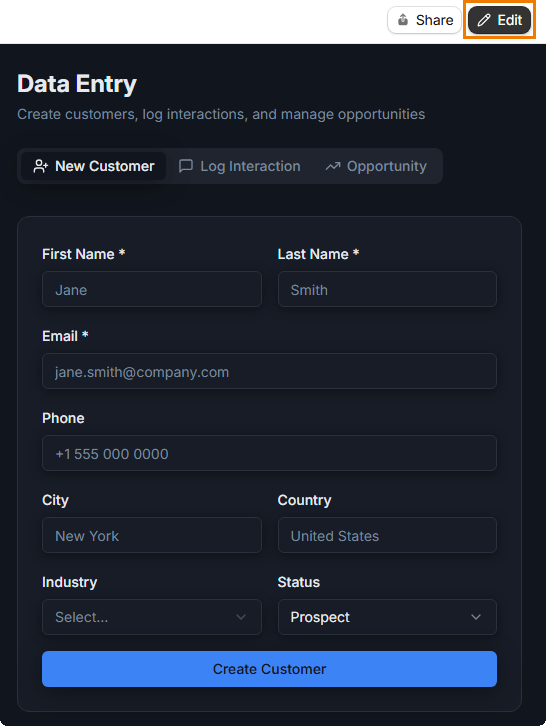
Data Entry Forms
Users can:
• Add new customers
• Log interactions
• Create or update opportunities
One interesting detail is that features like search and filtering are added automatically based on the structure of your data.
Step 4: Understand What Happened Behind the Scenes
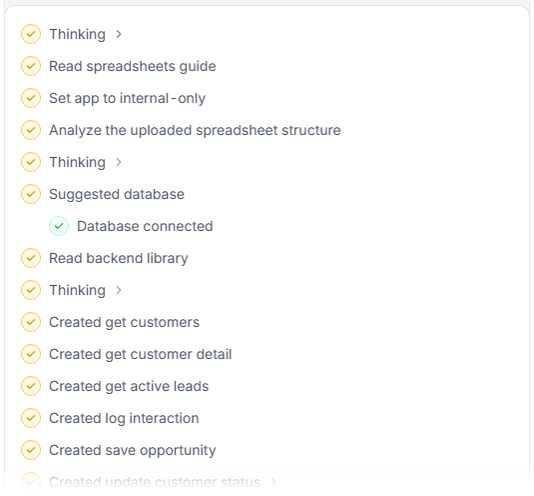
One of the most useful features is the build log.
This shows:
• How the system interpreted your spreadsheet
• How tables were linked together
• What logic was created to power the app
This transparency is important. It gives you confidence in how your data is being handled and allows you to refine the result.
Step 5: Make Changes Using Plain Language
If you want to modify the
app, you do not need to rebuild anything.
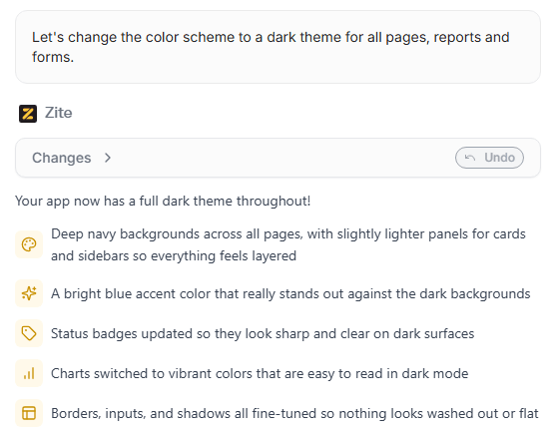
You can simply request changes, such as:
• Updating the colour scheme
• Adjusting layouts
• Adding new features
The system interprets your request
and applies the changes.
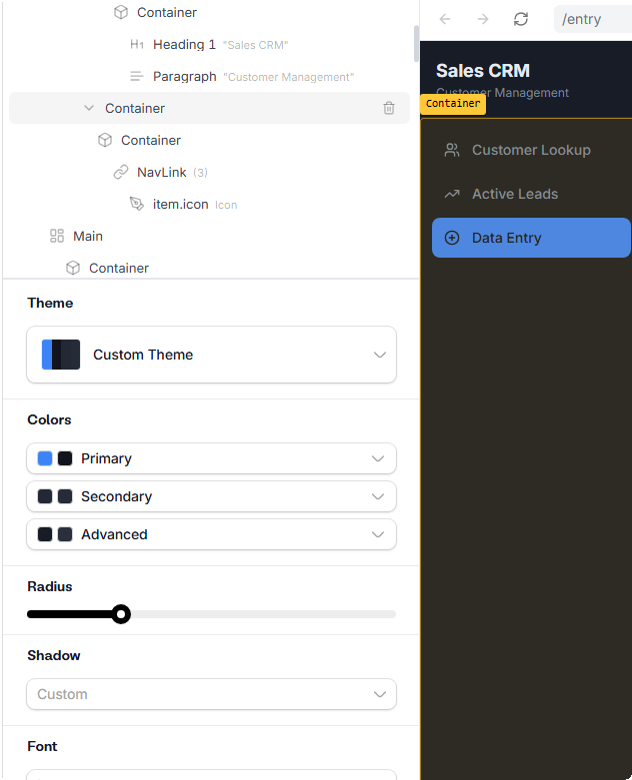
For those who prefer more control, there is also the option to edit elements manually or work directly with the code.
Step 6: Work With Structured Data
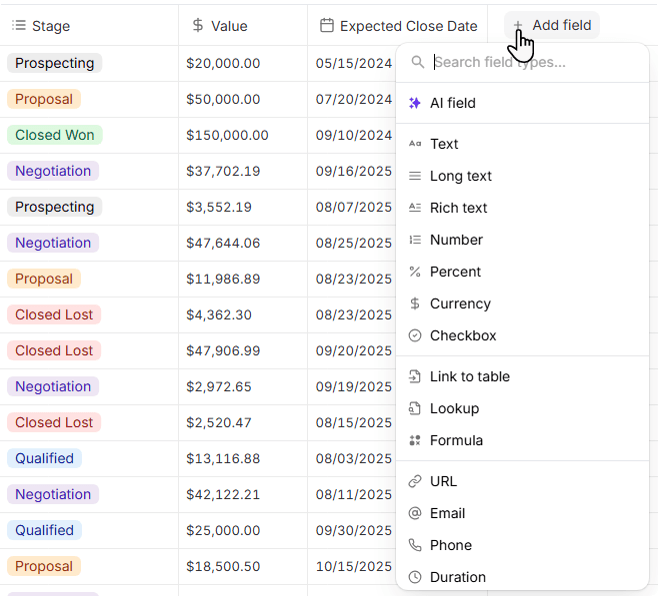
Behind the interface, your data is now organised as a proper database.
You can:
• Add new
fields
• Create relationships between tables
• Use lookups and formulas similar to
Excel
The difference is that the structure is enforced. This reduces the risk of errors and prevents users from breaking the system.
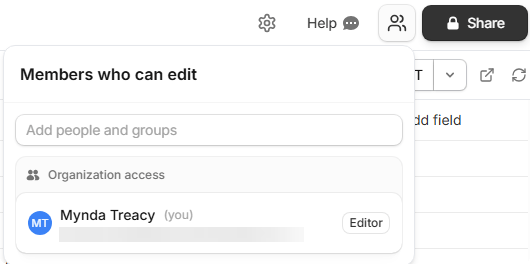
Step 7: Add Users and Control Access
Instead of sharing a file, you now manage users.
You can:
• Add team members
• Control who can view or edit data
• Restrict access to certain areas
This is a major improvement over traditional Excel sharing.
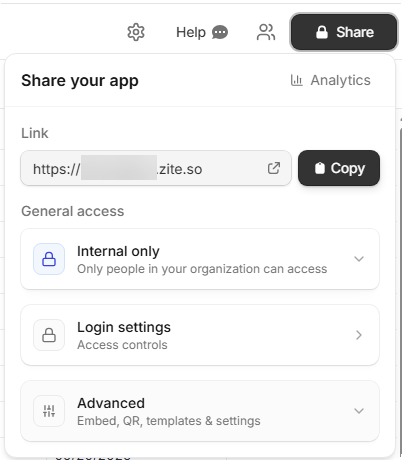
Step 8: Publish and Share
Once ready, you can publish the app and generate a link.
Your users will see:
• A clean interface
• Fast, responsive navigation
• No access to the underlying data structure
This removes the risk of accidental changes while making the system easier to use.
Step 9:
Update and Improve Over Time
As your needs change, you can:
• Modify the app
• Add new
features
• Republish updates instantly
This flexibility allows your system to evolve without starting over.
Why This Approach Works
The key advantage is that you are not abandoning Excel.
You are building on top of it.
You keep:
• Your existing data structure
• Familiar concepts like tables and relationships
But you gain:
• Multi-user
capability
• Controlled data entry
• A proper interface
• Scalability
When Should You Move Beyond Excel?
You should consider this approach when:
• Multiple people need to work with the same data
• Data integrity is becoming a concern
• The file is growing in complexity
• You need a better user experience for others
At that point, continuing to stretch Excel often creates more problems than it solves.
Try It With Your Own Data
If you’ve built something in Excel that’s starting to feel stretched, this is a really natural next step.
You keep the structure you already understand, but move into something that can handle multiple users, control access, and give people a proper interface to work with.
You’ll also get 50% bonus credits to use on the platform, even on the free account. And if you do
decide to upgrade later, it helps support us at no extra cost to you.
Want to sponsor our newsletters? Just reply to this email to get in touch with us.
Learn With Us
This email may contain affiliate links. This means I may earn a commission should you choose to make a purchase using my link. But we only promote courses we believe will benefit you.


 Learn With Us