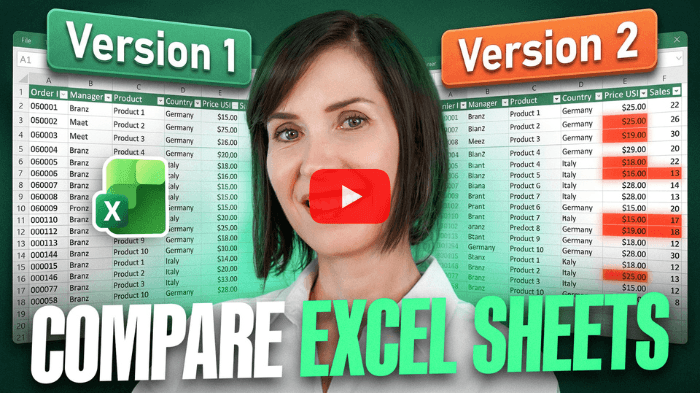
Your colleague sends you an updated version of a file you built last week. You open it and everything looks fine at first
glance.
Then the doubt creeps in.
Did they change the numbers? Move a row? Fix something or break
something?
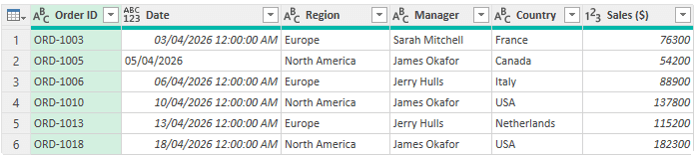
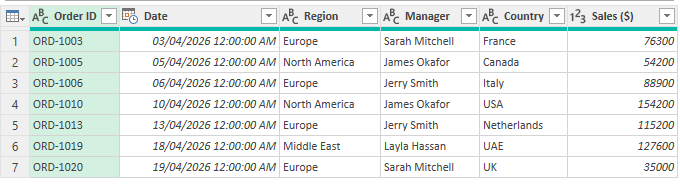
You start scanning both versions. Your eyes jump back and forth between sheets. Five minutes later, you still are not confident you caught everything.
This is a common problem in Excel. Comparing two versions manually is slow, error-prone, and frustrating.
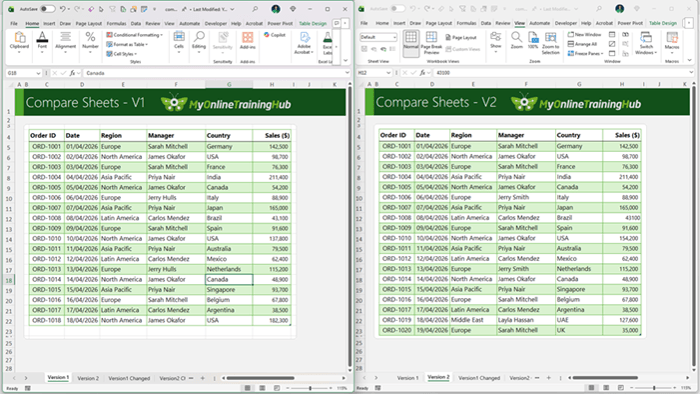
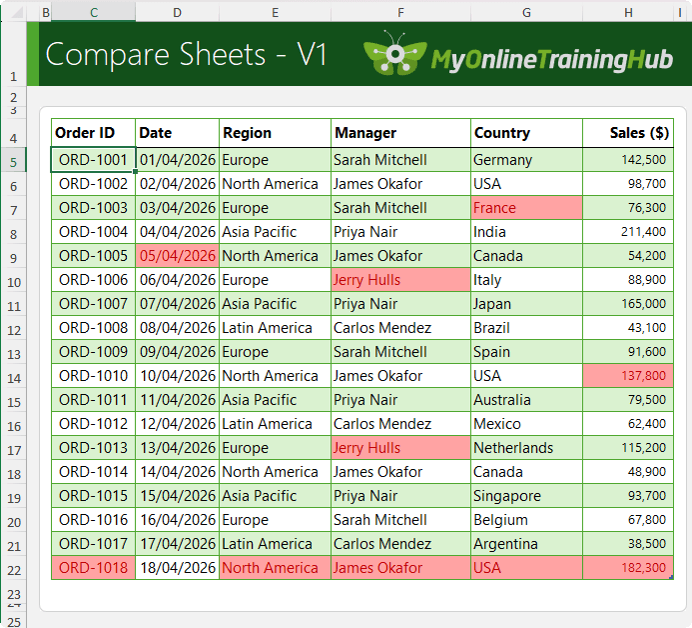
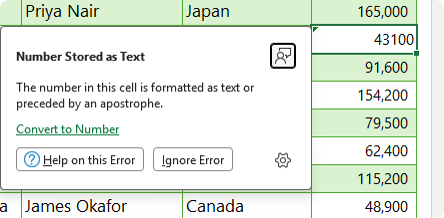
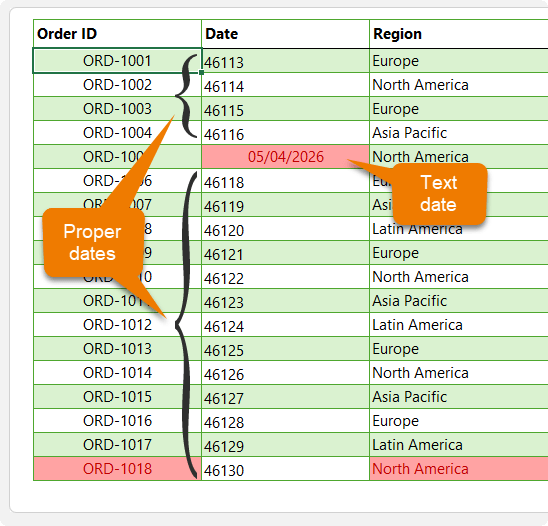
In this guide, you will learn three reliable ways to compare Excel sheets and find every difference. You will also learn why Excel sometimes
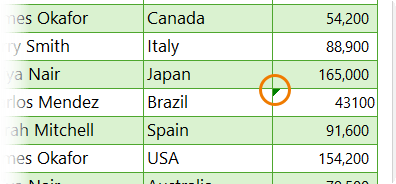
shows cells as identical when they are actually different.
Want to sponsor our newsletters? Just reply to this email to get in touch with us.
Learn With Us
This email may contain affiliate links. This means I may earn a commission should you choose to make a purchase using my link. But we only promote courses we believe will benefit you.


 Learn With Us