Many teams pay for tools like Asana, Monday, or Notion just to manage a simple project timeline.
The reason is not that Excel cannot do it. It is because most
attempts to build a Gantt chart in Excel end up looking confusing, fragile, or difficult to maintain.
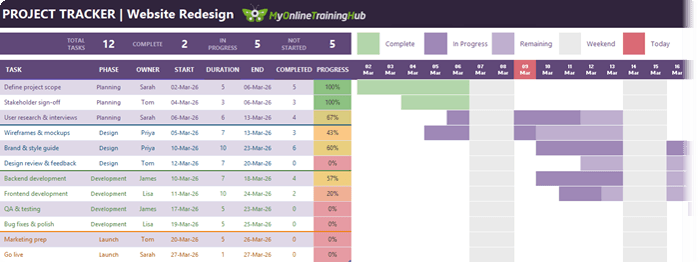
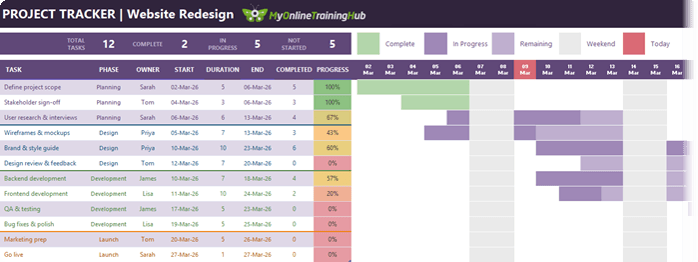
In this tutorial you will learn how to build a clean, modern Gantt chart in Excel that automatically updates when dates change and visually tracks progress on every task.
The entire chart runs on just three inputs:
• Start date • Duration • Progress
Once those values are entered, everything else updates automatically.
By the end you will have a dynamic project tracker that you can use immediately at work.
SPONSORED
Start with a spreadsheet at Glide
There's software hiding in your spreadsheet. You just can’t see it yet.
While you’ve been building
complex Excel files, rich with formulas, formatting, charts, and data, you’ve also been unintentionally building a map of your operations.
This is your sign to turn your spreadsheets into software.
Watch on YouTube (Download the Practice File from the Video Description)
What Is a Gantt Chart?
A Gantt chart is a visual project timeline.
It shows:
• What tasks need to be completed • Who is responsible for each task • When each task starts and ends • How much progress has been
made
Instead of scanning through rows of dates, the timeline is displayed visually so you can instantly understand the project schedule.
Step 1: Create the Project Task Table
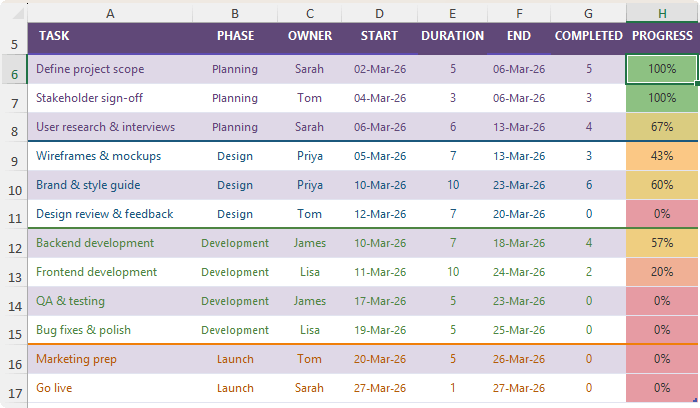
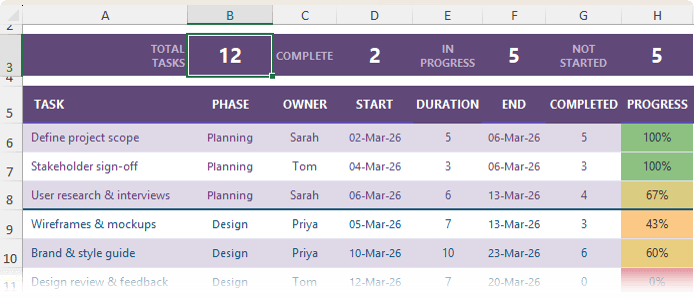
Start by building a simple table that contains the core details for each task.
Create the following headers (modify them as required):
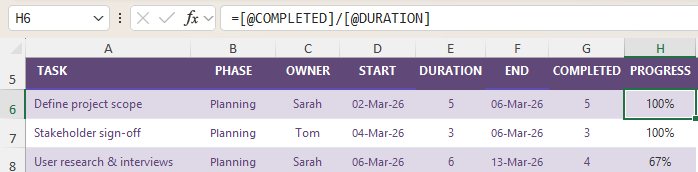
TASK PHASE OWNER START DURATION END COMPLETED PROGRESS
Enter the tasks for your project underneath the Task header.
For example:
Define project scope Stakeholder sign off User research and interviews Wireframes and mockups Brand and style guide Design review and feedback Backend development Frontend development QA and testing Bug fixes Marketing preparation Go live
Once the task list is complete, convert the range to an Excel Table.
Select the data and press: Ctrl + T
Ensure the "My table has headers" option is selected.
Tables are important because they automatically expand when you add new tasks and they fill formulas down automatically.
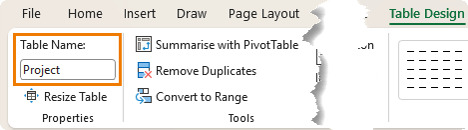
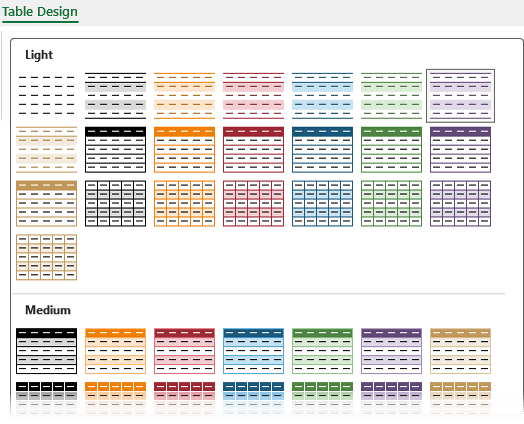
Via the Table Design tab, rename the table to: Project (or a name that reflects your project). You can do this in the Table Design tab:
Tip: choose a table style in keeping with your company branding or project theme:
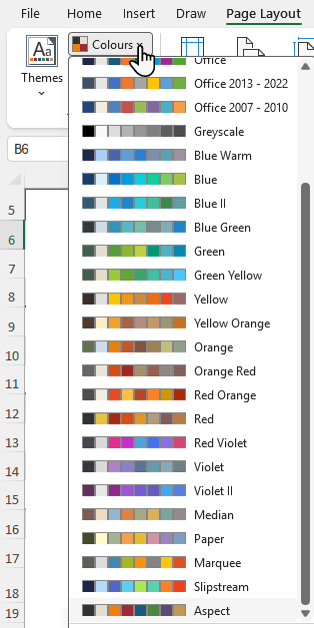
Note: my colour theme is Aspect. Change it from the Page Layout tab:
Step 2: Add Drop Down Lists for Faster Data Entry
Typing the same values repeatedly slows data entry and introduces mistakes.
Instead, add drop down lists using Data Validation.
For the Phase
column:
Data → Data Validation → List
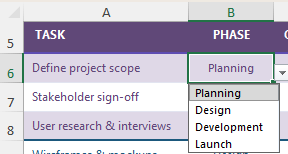
Source: Planning,Design,Development,Launch
Now every row contains a drop down for quick selection.
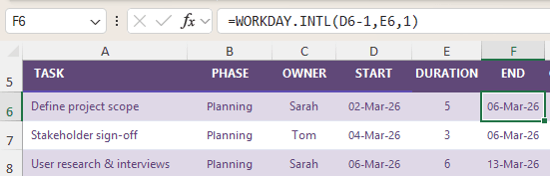
1 in the first argument represents one row of values.
The number of columns equals the project length calculated from the earliest start date to the latest end date.
The sequence begins at the earliest start date.
This creates a dynamic project calendar that expands automatically if the schedule changes.
Create a custom number format for the dates so the day and month appear on separate lines.
Example format:
dd mmm
Enter Ctrl+J after 'dd' to force a line break. Enable Wrap Text and narrow the columns so they resemble a timeline grid.
Step 6: Build the Gantt Chart with Conditional Formatting
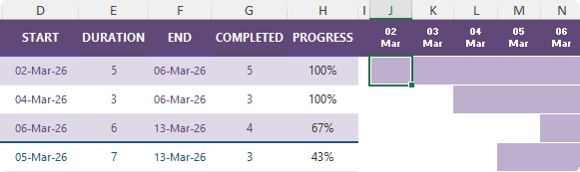
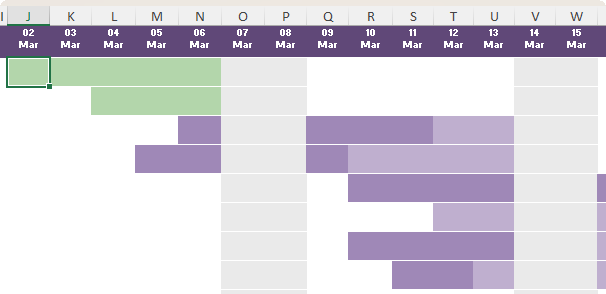
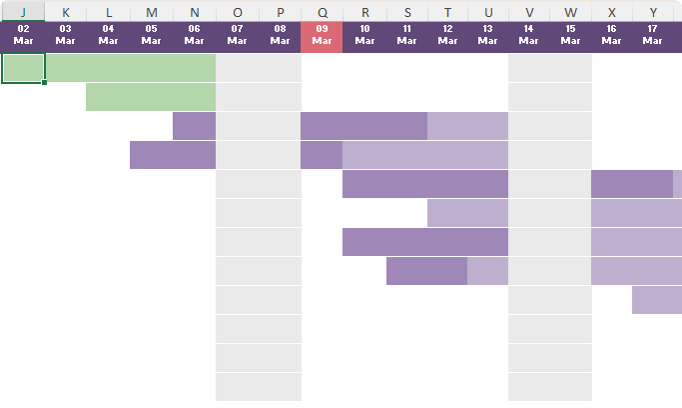
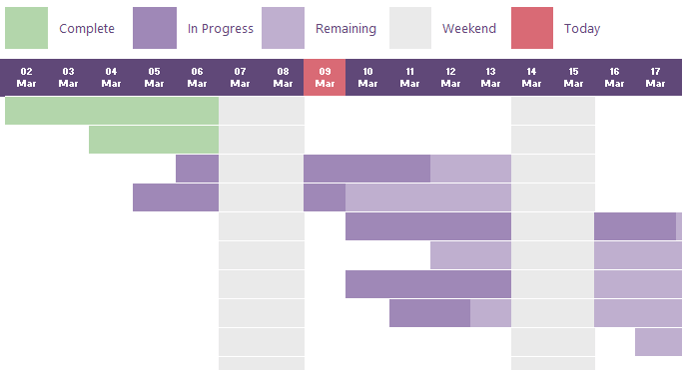
The Gantt chart itself is simply a grid that fills with colour when a timeline date falls between a task's start and end date. We'll use Conditional Formatting formulas to automatically fill the colours.
Select the entire grid where tasks intersect with timeline dates.
Create a new conditional formatting rule using a
formula:
=AND(J$5>=$D6, J$5<=$F6)
Explanation:
The date in the header must be greater than or equal to the task start date.
The date must also be less than or equal to the task end date.
Apply a light fill colour.
Excel now draws the Gantt bars automatically across the calendar.
Step 7: Show Completed Work Inside the Gantt
Bar
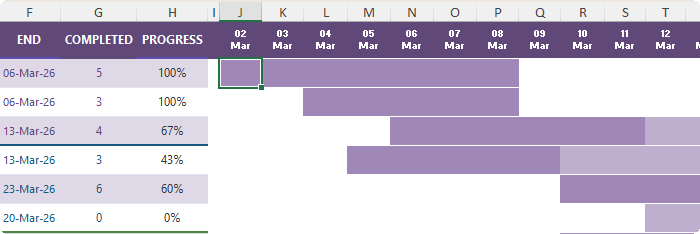
Next highlight the portion of work that has already been completed. With the entire grid selected, add another conditional formatting rule:
=AND(J$5>=$D6, J$5<=WORKDAY.INTL($D6-1,$G6,1))
Apply a darker fill colour.
Now as the completed value increases, the darker section expands across the timeline.
This creates a visual progress indicator inside the Gantt chart.
Step 8: Highlight Completed Tasks
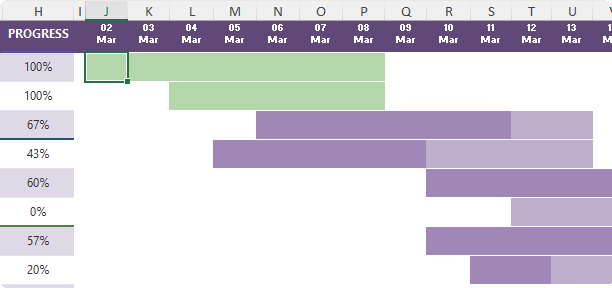
You can also highlight tasks that are fully finished in a different colour.
Everything runs on formulas and conditional formatting.
No add ins. No macros. No project management software required.
Take Your Excel Skills Further
If you enjoyed building this Gantt chart, you are already using many of the techniques that separate everyday Excel users from advanced ones.
This project
combines several powerful Excel skills including structured tables, dynamic formulas, conditional formatting, and automated calculations. When you put these tools together, you can build spreadsheets that update themselves instead of needing constant manual fixes.
Inside the course you will master how to combine formulas, tables, and automation techniques to build real tools for work such as project trackers, reporting models, and dynamic dashboards.
If you want to move beyond basic spreadsheets and start building solutions like this confidently, you can learn more about the Excel Expert course here.
Have a great day,
Mynda Treacy
Co-founder My Online Training Hub
Did someone forward this email to you?
Want to sponsor our newsletters? Just reply to this email to get in touch with us.
Learn With Us
This email may contain affiliate links. This means I may earn a commission should you choose to make a purchase using my link. But we only promote courses we believe will benefit you.








 Learn With Us