Rule 1: Build for Humans, Not Just Excel
Most users write formulas that work. Pros write formulas that make sense.
Let’s take the classic commission formula; a maze of nested IFs calculating rates for different sales levels and
statuses. It works, but it’s unreadable and impossible to update six months later.
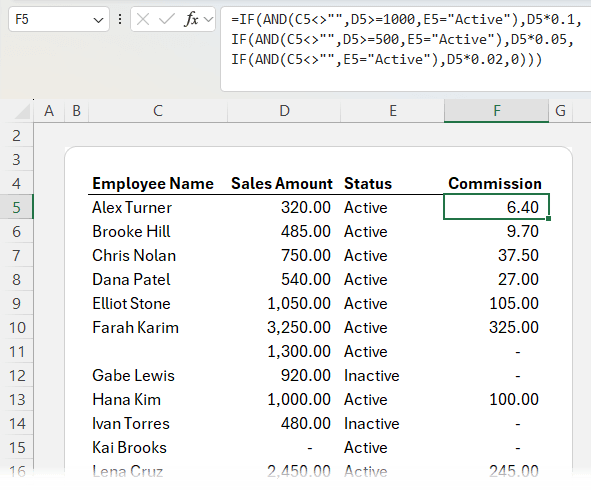
💡 The Fix: Use Helper Columns
Helper columns might sound “beginner,” but they’re an advanced design technique. They make your spreadsheets easier to audit, faster to calculate, and simpler to update.
Example setup:
Column | Formula | Purpose |
Eligible | =AND(C5<>"", E5="Active") | Checks if employee has a name and is Active |
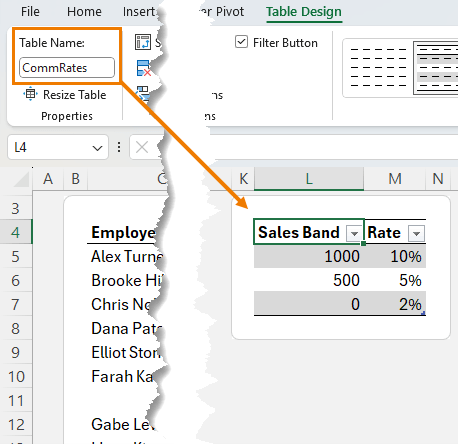
Rate | =XLOOKUP(D5, CommRates[Sales Band], CommRates[Rate],, -1) | Finds correct commission rate |
Commission | =IF(F5, D5*G5,0) | Multiplies sales by rate only if eligible |
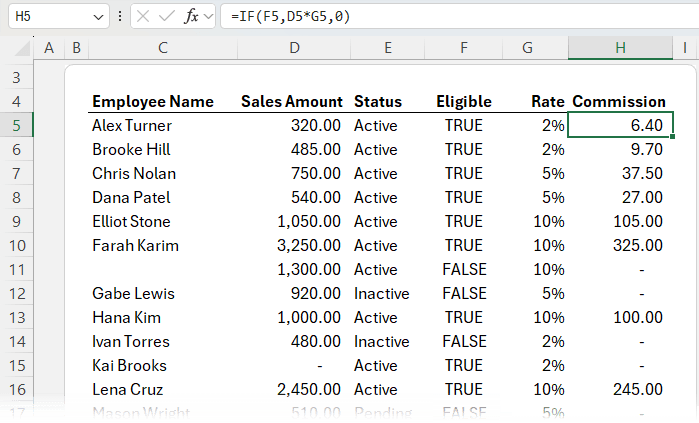
Now, if your commission bands change, just update your CommRates table. No formula rewrites required.
Rule 2: Boolean Logic –
The Shortcut Pros Use Instead of IF
Remember that last formula?
=IF(F5, D5*G5, 0)
You can actually drop the IF entirely.
That’s because TRUE = 1 and FALSE = 0 in Excel.
So this works perfectly:
=D5*G5*F5
When F5 is TRUE
(1), it multiplies as normal. When FALSE (0), the result is zero.
✅ Cleaner. ✅ Faster. ✅ Easier to read.
That’s the magic of Boolean logic. Excel’s hidden shortcut for smarter formulas.
Rule 3:
Use Invisible Helper Columns with LET
If you love clarity but hate clutter, the LET function is your best
friend.
It lets you create variables inside your formula, turning long logic chains into readable sentences.
Example:
=LET(
                           eligible, AND(C5<>"",E5="Active"),
                           rate, XLOOKUP(D5, CommTbl[Sales Band], CommTbl[Rate],,-1),
                           D5*rate*eligible
)
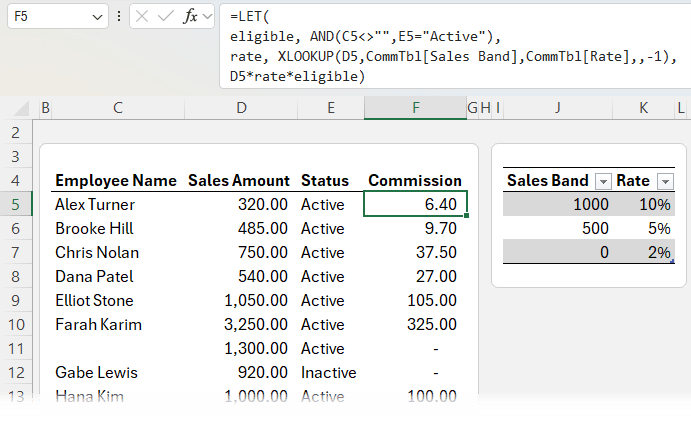
Here’s what’s happening:
- ‘eligible’ checks name and status
- ‘rate’ looks up the correct commission band
- The final calculation multiplies everything together
Result: the same output as before, but with no helper columns, and a formula that reads like a story.
👉 Want to master LET? Watch my full
LET tutorial for syntax, debugging tips, and performance insights.
Rule 4: Make Formulas Reusable with LAMBDA
The LAMBDA function turns any formula into your own custom Excel function, no VBA required. It makes it easy for less experienced users to perform complex calculations with ease.
Start by copying your LET formula, then wrap it in LAMBDA and replace the cell references with the LAMBDA
variables like this:
=LAMBDA(sales, name, status,
LET(
eligible, AND(name<>"", status="Active"),
rate, XLOOKUP(sales, CommTable[Sales Band], CommTable[Rate],, -1),
sales * rate * eligible
)
)
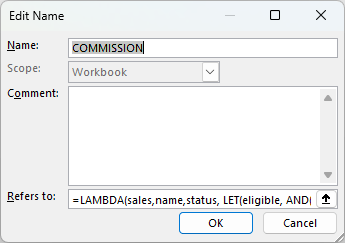
Go to the Formulas tab and save it in the Name Manager. I
called it COMMISSION:
Now anyone can use it:
=COMMISSION(D5, C5, E5)
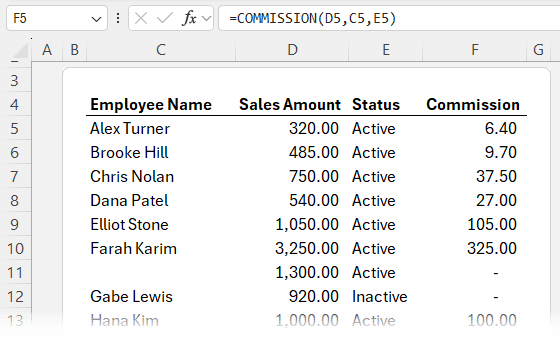
No long formulas. No logic errors. Just plug in the values and go.
This is modular Excel design. Formulas built once, used everywhere.
🧠 Want to go
deeper? My Advanced Excel Formulas Course covers LET, LAMBDA, modular formula architecture, and more, step by step.
Rule 5: Think in Arrays, Not Rows
If you learned Excel before 2020, you probably think row by row.
But modern Excel works in arrays - one formula that spills down and across multiple cells automatically.
Example: Filter and Sort Active Employees
=SORT(
FILTER(C7:F29, E7:E29="Active"),
2,
-1
)
This shows all active employees, sorted by sales, in a single formula.
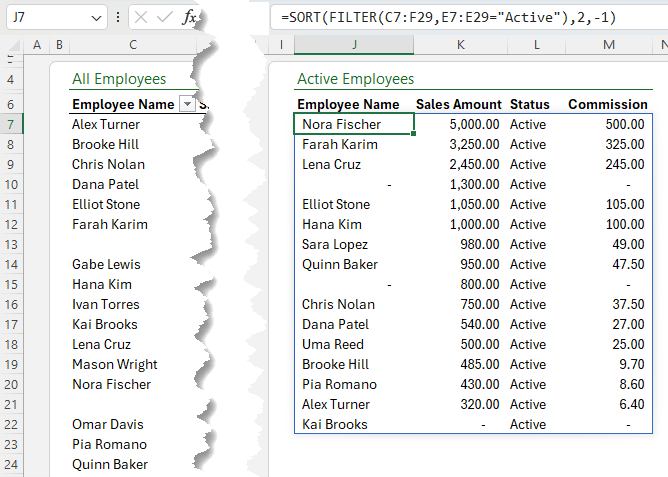
When data changes, it updates instantly. Add a new employee or change a status, Excel handles it.
Understanding the “Spill Range”
- The formula “spills” into
adjacent cells automatically.
- You can’t type into the spill area (or you’ll get #SPILL! error).
- Reference the entire spilled array with a #, e.g. =J7#.
When Not to Use Arrays
Arrays are powerful, but not always ideal:
- When a simpler function (like SUMIF) will do
- When working with very large datasets (use Power Query or
PivotTables)
- When formulas get too complex to debug
The Takeaway
These 5 hidden rules: helper columns, Boolean logic, LET, LAMBDA, and arrays are what separate “it works” spreadsheets from professional-grade models.
Each one helps you:
- Write faster formulas
- Debug with confidence
- Future-proof your workbooks






 Learn With Us