1) Create the Lists (for drop-downs)
1. Insert a sheet named Lists.
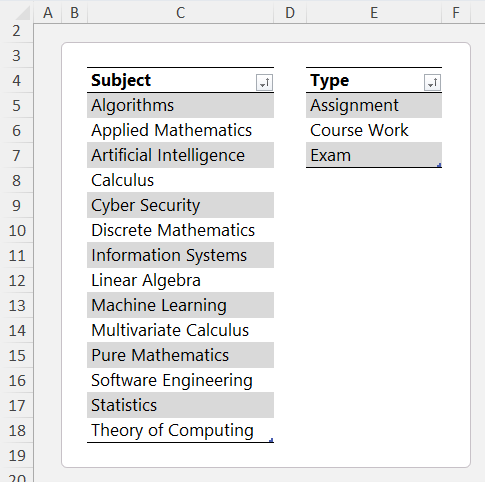
2. In C4, type Subject, then list your subjects in C5:C18 (e.g., Algorithms, Applied Mathematics, Artificial Intelligence, …, Theory of Computing).
3. In E4, type Type, then list Assignment, Course Work, Exam in
E5:E7.
4. Turn
each list into a Table so new items auto-extend:
- Select C4:C18 → Ctrl+T → My table has headers → OK → Table Design → Name: Subjects
- Select E4:E7 → Ctrl+T → Name: Types
5. Create named ranges for clean validation:
- Formulas > Name Manager >
New
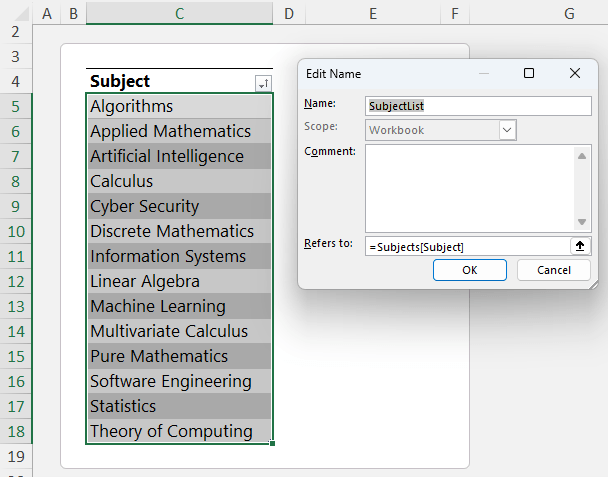
- Name: SubjectList → Refers to: =Subjects[Subject]
- Repeat for the Work Types:
- Name: WorkTypes → Refers to: =Types[Type]
Why this matters: As you add subjects or work types later, your drop-downs will automatically include them.
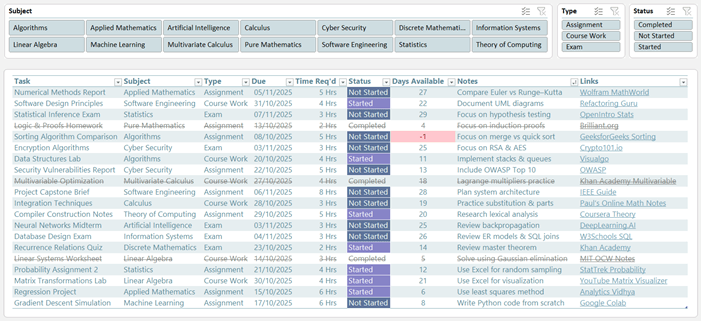
2) Build the Tracker Table
1. Insert a sheet named Tracker.
2. In C7:K7 enter these headers (or modify as required to your own needs):
Task | Subject | Type | Due | Time Req’d | Status | Days Available | Notes | Links
3. Convert the range to a Table: select one header cell
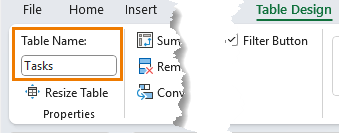
→ Ctrl+T → My table has headers → OK → Table Design → Name the table via the Table Design tab: Tasks.
4. Add data validation:
- Select the Subject column (D): Data > Data Validation > List → Source: =SubjectList
- Select the Type column (E): List → Source: =WorkTypes
- Select the Status column (H): List
→ Source (type in the list separated by commas):
- Not Started,Started,Completed
5. Days Available formula (counts down to the due date):
- In the
first data row of Days Available (cell I8):
=[@Due]-TODAY()
Press Enter and Excel will fill it down the table.
Tips: Set your preferred date format on the Due column (Ctrl+1). Keep Notes and Links columns wide enough for readability.
3) Conditional Formatting (make the tracker “readable at a glance”)
A) Highlight overdue tasks
1. Select the Days Available column cells (column I).
2. Home > Conditional Formatting > Highlight Cells Rules > Less Than…
3. Type: 0 → choose a light red fill with
dark red font.
B) Colour the Status values
1. Select the Status column cells (column H).
2. Home > Conditional Formatting > New
Rule > Format only cells that contain
- Specific Text → Containing → Not Started → choose a clear “attention” fill.
- Specific Text → Begins with → Started → choose an in-progress amber.
C) Strike through completed rows (entire row)
1. Select the entire Tasks table (click inside → Ctrl+A).
2. Home > Conditional Formatting > New Rule > Use a formula to determine which cells to format
3. Enter a formula that checks your Status column (adjust the letter to your sheet; e.g., if Status is in column I):
=$H8="Completed"
4. Format… → set Font color to light grey and Strikethrough → OK → OK.
Note:
The dollar sign locks the column (Status) while the row changes per record.
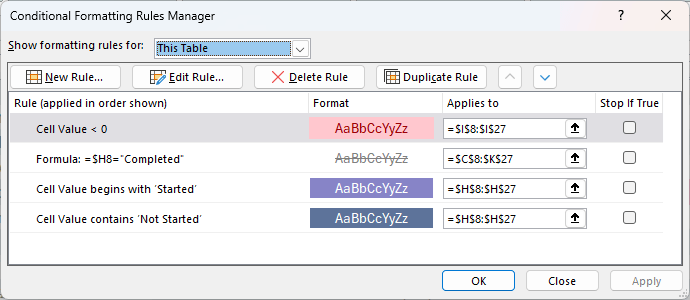
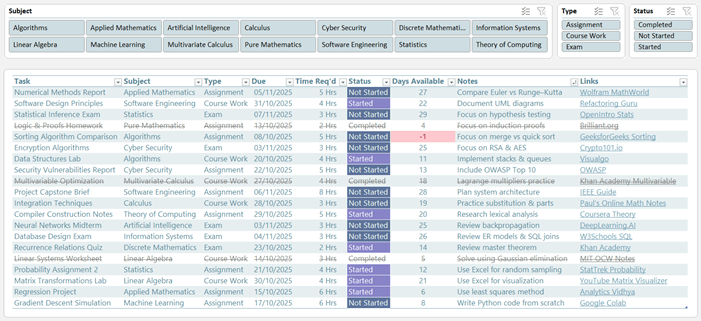
You should have the following rules:
4) Add Slicers (fast filtering)
1. Click anywhere in the Tasks table.
2. Table Design > Insert Slicer → tick Subject, Type, Status → OK.
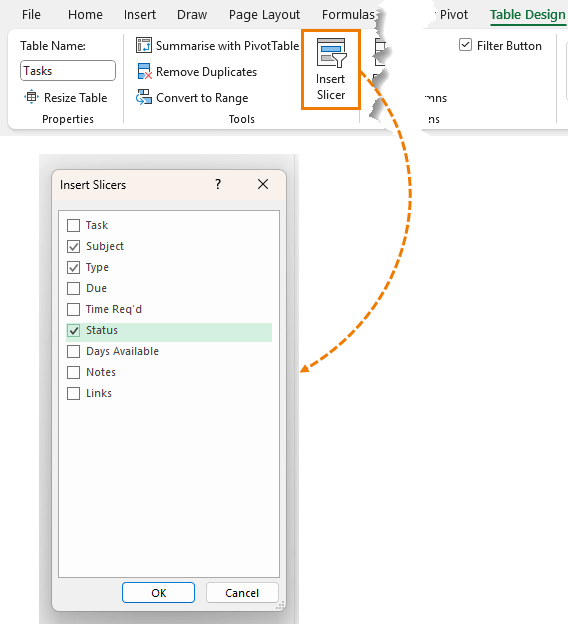
3. Arrange the slicers near the table. (Optional: apply your custom slicer style and tweak sizes/columns for a clean layout.)
Result: You can instantly focus on a single subject, filter to “Exam”, or only show “Not
Started”.
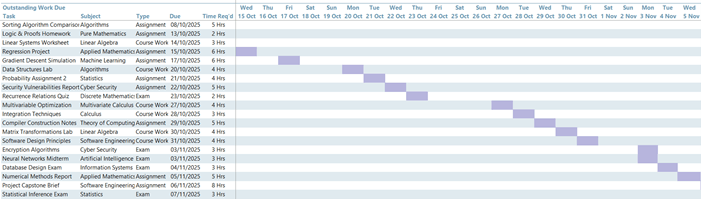
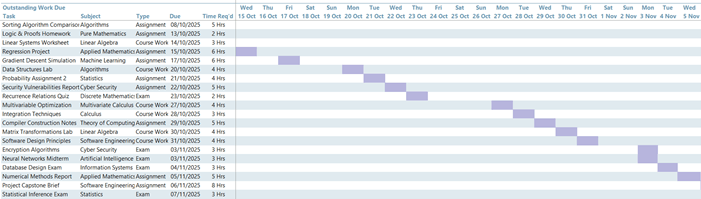
5) Build the Schedule View (mini calendar)
This gives you a compact, calendar-style overview that updates automatically.
1. Insert a sheet named Schedule.
2. In B5:F5, add headers (customise as required): Task | Subject | Type | Due | Time Req’d.
A) Spill a sorted list of active (not completed) tasks
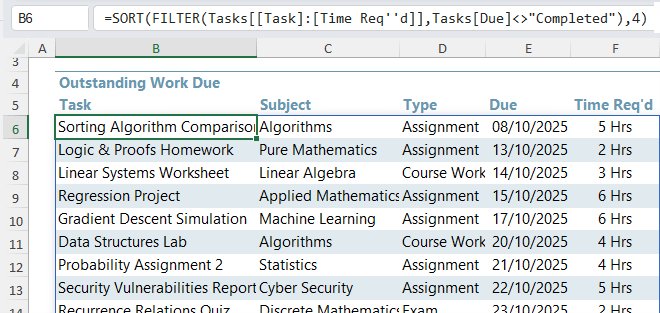
In B6, use the SORT and FILTER functions:
=SORT(
                  FILTER(Tasks[[Task]:[Time Req'd]], Tasks[Status]<>"Completed"), 4)
This pulls columns Task through to Time Req’d for tasks not completed and sorts by the 4th column in that slice (Due date).
B) Create a horizontal row of dates
In G5, use the SEQUENCE function to automatically generate the date range your tasks span:
=SEQUENCE(, MAX(Tasks[Due]) - MIN(Tasks[Due]) + 1, MIN(Tasks[Due]))
- Spills dates across (one column per day) from the earliest to the latest due date.

Optional day-of-week row above (in G4):
=G5#

Format G4 as ddd (Mon, Tue, …) and G5 as d mmm (1 Jan).
C) Banded rows for readability (since spilled array formulas can’t be inside Tables)
1. Select a generous output region beneath the headers to allow for more
tasks and more dates, e.g., B6:AT30.
2. Home > Conditional Formatting > New Rule > Use a formula to determine which cells to format
3. Use:
=AND($B6<>"", B$5<>"", MOD(ROW(),2))
Choose a soft fill colour.
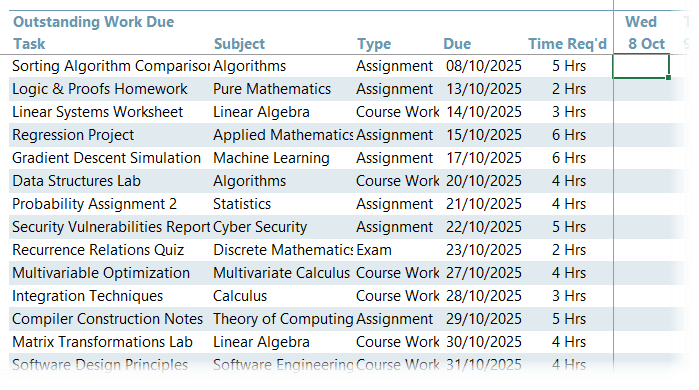
Why this works: It only bands rows with data and columns with headers/dates, and it alternates rows with MOD.
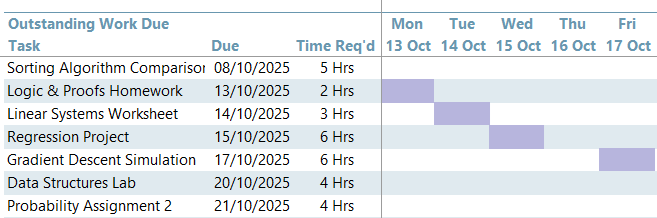
D) Mark each task’s due date on the
timeline
1. Select the date grid area (e.g., G6:AT30).
2. Conditional Formatting > New Rule > Use a formula
3. Use:
=AND(G$5<>"", G$5=$E6)
This highlights the cell where the column header date equals the row’s Due date (E).
1. Pick a strong highlight fill.
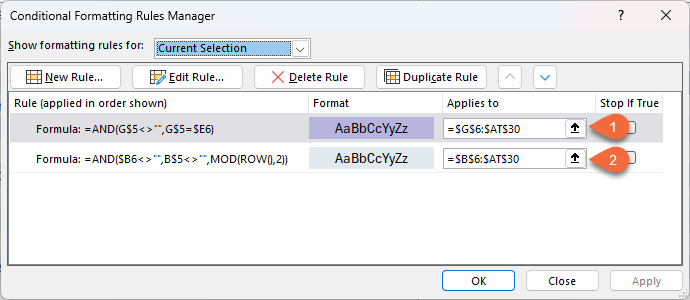
2. Note: in Conditional Formatting
> Manage Rules, move this date-highlight rule above the banded rows rule so it isn’t overridden.
E) Finishing touches
- View > Freeze Panes at G6 to keep task info visible while you scroll the date grid.
- View > Show > Gridlines off for a cleaner dashboard look.
You’re done!
You’ve built a reusable, no-macro tracker with:
- Clean data entry via drop-downs
- A live Days Available countdown (overdue flags included)
- Quick filtering with Slicers
- A dynamic Schedule view that updates as your table changes
Upgrade Your Skills
If you’d like a broader toolkit so projects like this feel effortless, our Excel Expert Course is designed to give you a wide range of professional-grade skills you can apply to any workbook. Plus, it includes support and mentoring personally from Microsoft MVP, Mynda Treacy.




 Learn With Us